
Compatible Subcold ROAM fridge freezers can be connected to a smartphone using Bluetooth and the Tuya Smart app. Once connected, the app allows you to access the fridge control interface from your phone.
Before You Begin
Make sure the ROAM fridge is connected to the power supply and switched on.
Enable Bluetooth on your smartphone.
Keep your phone close to the fridge during setup.
Download and install the Tuya Smart app on your smartphone.
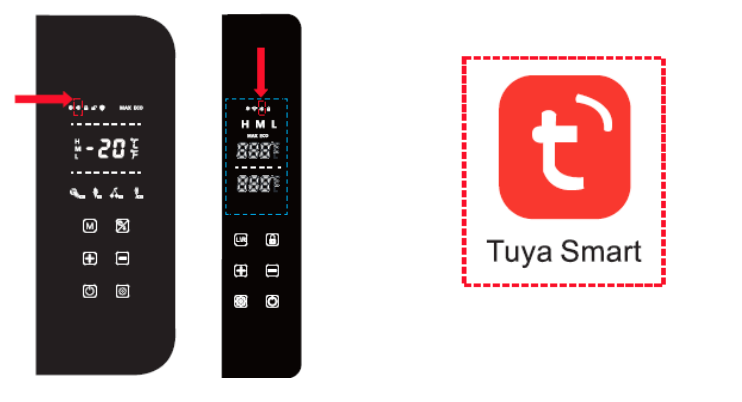
1. Check the Bluetooth Icon on the Fridge
Connect the fridge to the power supply. When the appliance is ready to pair, the Bluetooth icon on the control panel will flash.
2. Open the Tuya Smart App
Turn on Bluetooth on your phone, then download and open the Tuya Smart app. The fridge should normally be detected automatically when it is powered and nearby.
3. Add the Fridge
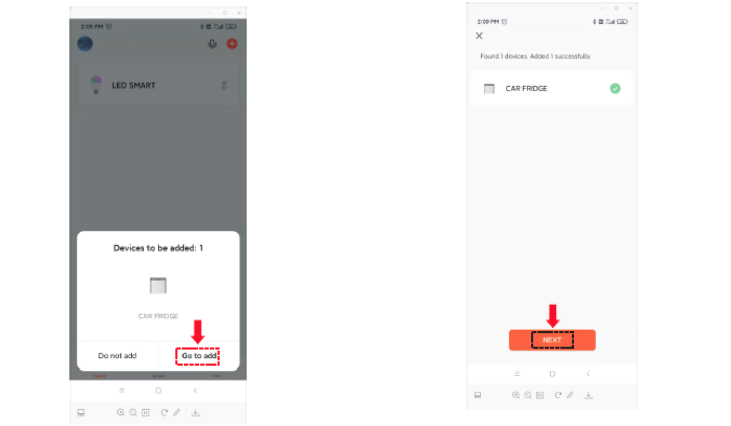
When the app discovers the fridge, a device prompt will appear. Select the fridge and tap the option to add it.
4. Complete the Automatic Connection
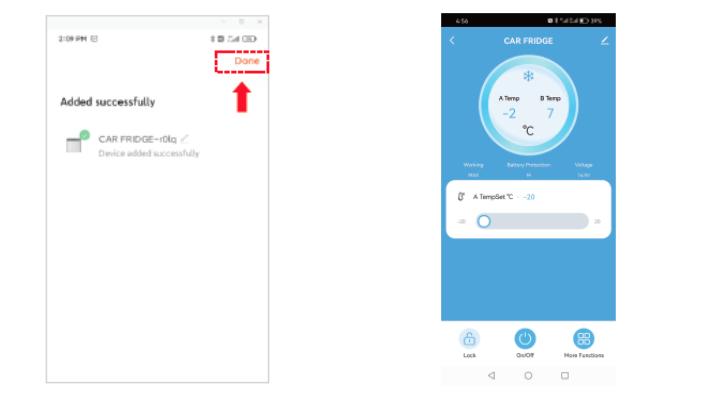
After the fridge has been selected, tap NEXT and allow the app to complete the connection process. When the device has been added successfully, tap Done.
5. Open the Fridge Controls
Once setup is complete, open the connected fridge from the Tuya Smart app to enter the Bluetooth control interface.
If the Fridge Is Not Detected Automatically
If the Tuya Smart app does not automatically discover the fridge, it can be added using the app's scanning function.
6. Open Device Management
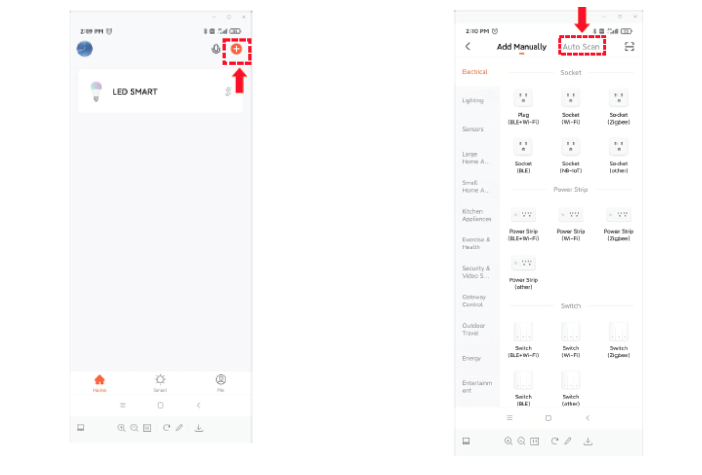
From the Tuya Smart home screen, tap the add (+) button and enter the device management screen. Select Auto Scan.
7. Start Scanning
Open the device scanning screen and select Start scanning. Make sure the permissions requested by the app, including Bluetooth, are enabled where required.
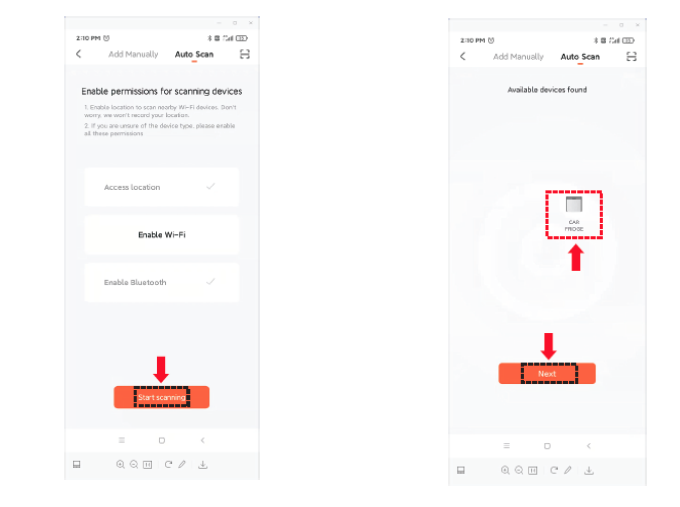
8. Select the Fridge
When the fridge appears in the available devices list, select it and tap Next. Complete the setup in the same way as the automatic connection process, then tap Done to open the fridge control interface.
If Bluetooth Still Will Not Connect
Confirm that the fridge is switched on and the Bluetooth icon is flashing.
Check that Bluetooth is enabled on your phone.
Keep the phone close to the fridge while pairing.
Close and reopen the Tuya Smart app and try again.
Use Auto Scan if the fridge is not found automatically.
Check that the app has the permissions it requests for device scanning.
If the fridge still cannot be added after completing these steps, please contact Subcold Customer Service with your fridge model, serial number, phone type, and a screenshot of where the setup process stops.